
Videos are another type of multipage document that is useful to know how to make. Canva makes it easy to design using either one of their premade templates or you can design your own using the elements.
Click the CREATE button and select video from the options. You will now need to chose what format you want the video to appear.
Each platform such as YoutTbe, TikTok and Instagram will have different requirements. The template are already pre-sized for you.
`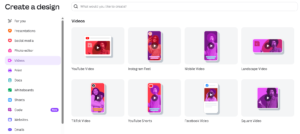
For this lesson we are going ot look at creating videos for YouTube.
Click te YouTube Video button

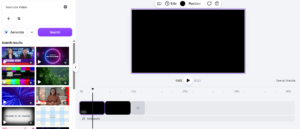
We should now have a new tab opened showing us the workspace. On the left hand side is the templates, and taking up most of our space is the workspace itself. Underneath, we now have what is called TIMELINE.
This timeline will allow you to add more clips to your project. There is also room now to add an audio track – which we will get to later.
Video from a template
To add a video template to your project, scroll through the available templates until you find one you like.
Remember, the crown icon in the btotom right hand corner indicates a premium design that is only available for free to PRO users with a valid subscription.

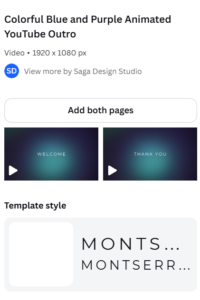
Working with this free oiption, click on the thumbnail to add it to your design. You will get the option ot add any other page in this premade design to your project. Click the ADD BOTH PAGES button to add the entire set of pages.
Preview the design
Click the play button underneath the preview screen in the workspace to see your design.
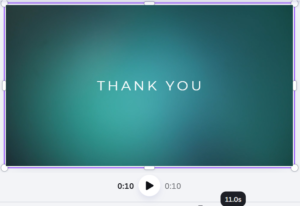
Annimation
Click the ANIMATE button at the top of the screen. Choose an animation for your design.

Add Music
Click on the AUDIO tab in the menu on the left hand side. Use the search button to find some suitable music.
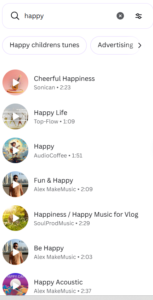
Watch out for the CROWN icon that denotes PRO options only. Click on the play button to preview the tune. Click on the text to add the music to your video.
The music automatically adjusts to the length of your video.
The Playhead
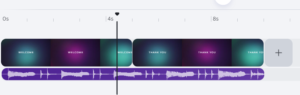
Below your workspace section is the Timeline, here you can see thumbnails of your video, with each clip separated by pages. You can click the PLUS button to the right of the timeline to add a new blank page.
At the top of the timeline is a time that displays
- how long each page in your video goes for
- how long your total video is
There is also a small arrow at the top of a long line, you can left cicik on this arrow and drag it across your timeline to show on the preview screen what that part of the video looks like at that time.