

Canva is an extremely useful tool and can do so much more than we have covered so far just looking at Facebook posts. Flyers are anther popular design and can be used a prints, or electronic.
In this session we are going to create a flyer that can also be used as a reel for posting to social media such as Facebook, X (Twitter), TicTok and others.
Make sure you are in your Canva Dashboard. Click on CREATE at the top of the menu.

Select FLYER from the options. Choose a template by clicking on the TEMPLATES button in the menu on the left hand side. Or use the search bar at the top to search for particular type of layout. In this example, I am looking for something with a mix of images and text within the fashion designs. The example I have chosen is a PRO design, you may need to find a basic design or design your own using the elements.

Left click on the chosen template to add it to your workspace.

By moving your cursor over the elements, you can see that it is made up of text boxes, and grids. The grids are to hold the images.
Adding your own images
You can easily replace the images by adding your own, or using the stock images from the library. Or you can use an AI tool such as Gemini or Lovart to create the images for you.
To upload an image, click on the UPLOADS button on the left hand side. Then drag and drop your images from your pc into the folder. You can then click on each of the images once they have uploaded to add them to your design and drag the image over the grid placeholder to replace the image.

Change the Text
Change the text as appropriate.
Download Options
You can download this as an image (PNG) or as a PDF if just want to print it. But thre are other options.
Add Animtion
Click on the first image in the group and then click on ANIMATION in the formatting bar at the top of the screen.
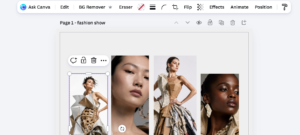
Add animations to your text as well.
Preview your reel

Click on the PREVIEW button in the menu at the top of your workspace to preview your design. You can close the preview screen at any time to go back to your design and make changes.
Canva saves automatically.
Download as a MP4
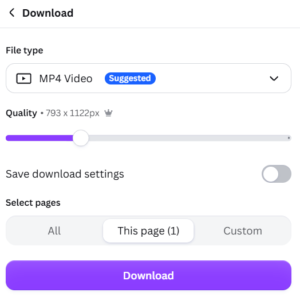
Click on the SHARE button on the right hand side of the screen and click on DOWNLOAD. Click the options button to change from png to mp4. Then click the download button.
Final Result