
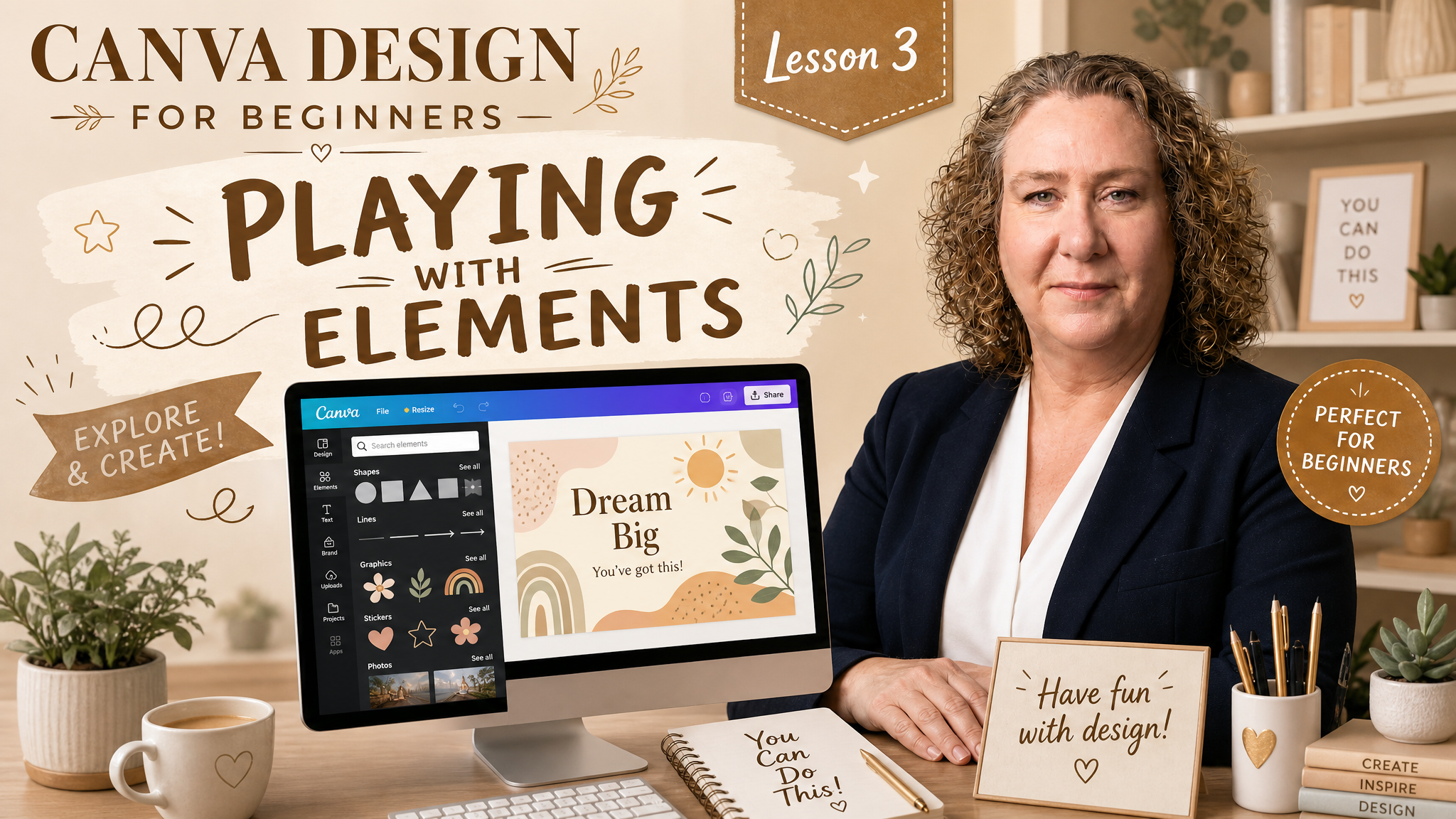
Playing with Design Elements
In this lesson, we are gong to create a Facebook post advertising some plushies for sale.

Skills covered
- Creating a Facebook post
- Adding a background using Grid design elements
- Adding text
- Adding teddy bears from Elements
- Adding text effects
As usual you can either read the instructions below, or watch the video and design along. If I go too fast, please just pause and re-wind the video.
Canva has a wide array of Design Elements to create interesting looking designs. Click back on your Canva dashboard tab to return to the design options.
Remember Canva will open each design in its own tab.
This time we are going to create our own post for Facebook. Either click on the CREATE button, or click on Social Media to create a new Facebook (landscape) image.

Create the Background
Click on the ELEMENTS icon in the menu on the left hand side to view all the available elements.

This will open up the list of categories.

Let’s start by adding a GRID. Select the icon for GRID. This will show the available grid layouts. Choose the first option, which should be a single image.

Your design should now look like this.

Click on ELEMENTS again to make sure you are still selecting elements. And search for BACKGROUNDS. Scroll through the background options to find one you like. Remember, the backgrounds with the crown icon in the bottom right corner are PRO elements only.

Click on the thumbnail to add your design to the canvas.

You should now have something like this.
Using your left mouse, click and drag the image, and Canva will apply it to the background. Or you can right click to bring up the menu and select SET IMAGE AS BACKGROUND.

Add Text
Click on the T for Text from the menu on the left hand side. 
Scroll down to find suggested font templates. Remember, those with the crown in the bottom right hand corner are for PRO users only.

Click a text type to add it to your design. Then you can change the text by selecting it, and typing over the top.

Other Design Elements
Canva includes other design elements that you may need to search for (there are over 1million design assets available!). In this design, a plush teddy may be suitable.
Click on Elements and search for a design element that may suit your design. Click on a design to add it to your image.

While the element is selected, you will see a box around the element, and dots in each corner, plus underneath is a rotate icon. You can change the size of your element by dragging the circles on each corner out to enlarge the element, or in to make the elements smaller. Dragging the rotate icon, will make your element rotate.
Change the size or rotation of your element and move it to a suitable position.
You may also need to change the POSITION of the element, by clicking the POSITION BUTTON.  and selecting suitable position from the available options.

Add other design elements and additional text as desired. In the example below, I have added a text box with a background – you can find this option under EFFECTS.
This type of image is suitable for Facebook pages, and for the website.
Download your image if desired.