
Mailer Lite #
Mailer Lite is a separate tool from our website #
Mailer Lite is a subscription email distribution service. We are using their FREE plan which allow us to send up to 1000 newsletters at a time.
To login to Mailer Lite, start new tab in your browser and go to https://dashboard.mailerlite.com/login – you can also click the red button below to go to their login page. And use the email and password provided to you from the passwords book.

From the Dashboard, you will seeinformation about the last “campaign”, this is information about the last newsletter that was sent. You will also see how many subscribers and other important information.
Creating a new mail out. #
Each mail out is called a “campaign”, click on CAMPAIGN on the dashboard menu to the left of the screen.
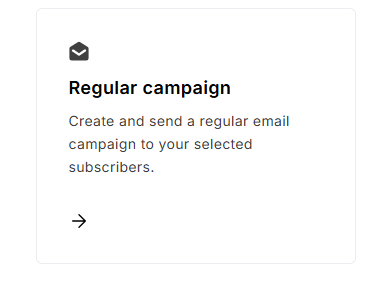
And then choose REGULAR CAMPAIGN
Enter the campaign details #
-
- Give your campaign a name such as newsletter issue.
- Write the subject, as you would with a normal email.
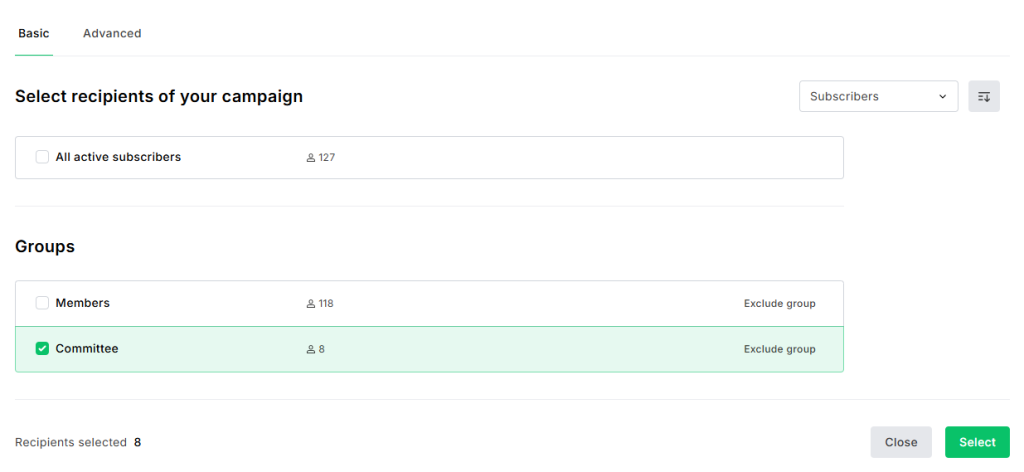
- Click in the box marked Recipients to select the GROUP you are sending the emails to

Select the groups to email #
There are currently 2 groups set up for mail outs.
- Members
- Committee
Create your content #
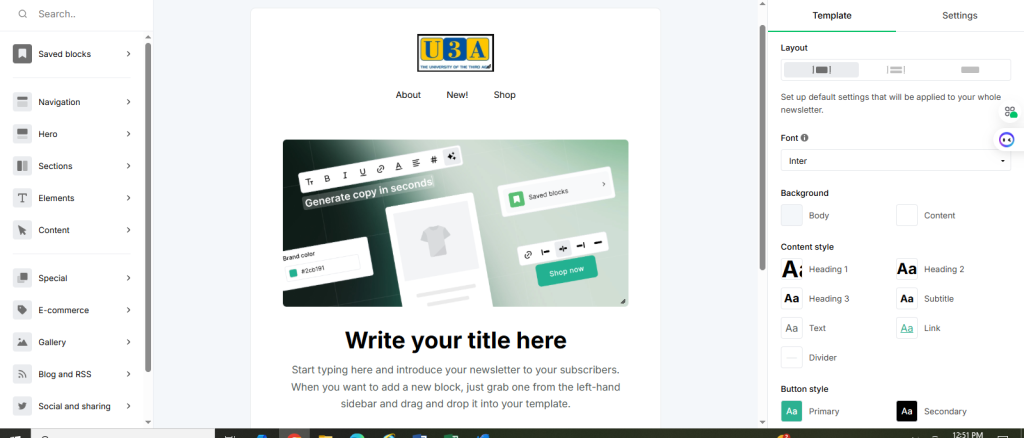
The template shown is the only one available to us on the free plan. .
It features a header image of our logo and text placement for links.
You can safely delete this header image if you wish – and add our own header image using the block below.
Menu Style Options #
On the left hand side of the screen are some options. Find the HERO section and click on the arrow to the right of this option and choose a layout from the options.
Hold your left button down on the layout chosen, and drag this block into the design layout.
Change the Image #
If you put your cursor over the block, a context sensitive menu will appear.
To change the image, click the change image button and select the chosen image from the Mailer Lite Library – or upload your chosen image.
Button Text & Links #
Place your mouse over the button to get to the context sensitive menu.
Click on the link icon to add a link to a website or to attach a file from the library.
You can also change the text.
Add more sections #
You can add multiple sections to your design using the SECTIONS option from the menu, including 1, 2 or 3 column layouts.
The beauty of a 2 column layout is that you can add an image to one column with text and buttons in the other column.
Or use a 1 column layout for a call to action. A 3 column layout is useful for a quick series of images – such as a gallery of images from a workshop.
Finished Editing #
Once you have completed your edits, click the DONE EDITING button at the top right.
Send now or Schedule for Later #
You can choose to send the emails now, or schedule them for bulk sending at another time and date.


